Showing posts with label Unsupported. Show all posts

10 September 2020

Cheap energy efficient harddrives

Decisions

Every so often I'm faced with a difficult decision: Clean up my digital closet or buy more storage space. It's a good idea to sift through all the files periodically and throw out what's no longer needed but today I'm going the other route: We'll add more storage! My storage needs at home are covered by a Xpenology virtual machine running on my low power homelab server. It has served me well over the years and I don't intent to replace it anytime soon. 

For home use, I prefer backups over RAID since keeping my data is more important to me than having it always available. For this reason, the disks I use in my NAS are each set up with their own volume. Data I like to keep is copied between disks and to an offsite location by a scheduled job. I consider individual hard drives to be unreliable and have set up my backup schedule accordingly. Important data gets more copies and a higher copy frequency. Unimportant data is only present on a single disk and never gets copied. 

I don't believe I can differentiate a reliable hard drive (one that keeps working for 7+ years) from an unreliable one (one that fails in the first months of use). Therefore I consider "NAS" specific hard drives just as reliable as any other type. I just buy the cheapest one I can find and replace when needed. 

The search

When selecting a hard drive there are a number of things I consider:

  • Price
  • Capacity
  • Power consumption
  • Noise

We'll start with price since that's the least complicated factor. There are a good number of websites that compare prices between all the online shops. At €0,020/GB it seems 6TB drives are the sweet spot at the moment. They offer the cheapest storage for their price. However, external USB hard drives dive even lower at €0,016/GB for a 12TB model. So it seems I should shop for an external hard drive, then? Well, why not! 

Capacity is easy, I don't hoard data so I don't need huge capacity. I'm going to buy a single chunk of whatever is the best deal of the day.

In an always-on scenario, such as my little server that's powered on 24/7, running costs make up the biggest pile of cash needed to keep all my files available, the electricity bill needed to keep it running is higher than the initial purchase. In the search for a harddrive that makes little noise, is energy efficient and cheap, you are going to come across 2,5" models. The amount of power needed to keep a 2,5" drive spinning is significantly less (a little over one Watt) compared to a 3,5" drive (a little over 5 Watts). These models are available up to 5TBs as of now. That's enough for my needs. As every Watt of power used 24/7 costs around €2 every year, a 2,5" drive makes me lose the smallest bag of money all around.

I've tackled the noise factor at home by placing the homeserver in a padded closet. It's dead silent when I close the door. Case closed.

The sale

Searching for the cheapest 2,5" external USB drive I ended up at Amazon. They offer a Seagate 5TB model for less than 100 euro's. That makes the price €0,019/GB. Together with the low power consumption makes it good enough for me! 
The rest is well known. We found the cheapest hard drive at Amazon and no other shops. Added it to the shopping cart, clicked "Buy now" and a few days later there was a box on my doorstep.


A word of warning: Western Digital (WD) has big portable external harddrives on sale. Unfortunately some of these disks have a USB port on the drive itself (instead of a SATA-to-USB converter board). I did not want to run into this issue so I selected a Seagate drive.

Breaking stuff

A USB disk is nice and all, but usually it's a SATA disk in a piece of plastic. I have a bay available in the homeserver so I'll put in inside instead of keeping a dangling box on top. With some tools it's easy to open the plastic case. This process of liberating external USB drives from their housing is known as "shucking" a hard drive. Obviously this voids the warranty!


Insert the tool into the seam and wiggle until you hear *click* from inside. This housing is not meant to be serviced so I did not expect it to stay in one piece. 


After one round of destroying plastic clips, the hard drive is visible.


That looks like a SATA interface to me!


Removed the rubber grommets and screws.


These parts are no longer needed.

Adding the disk to XPenology works as it's supposed to. 

There's an extra disk available, creating a volume is easy using the wizard and that's all folks!

See the source image

21 March 2017

Supermicro X10SDV CPU cooling

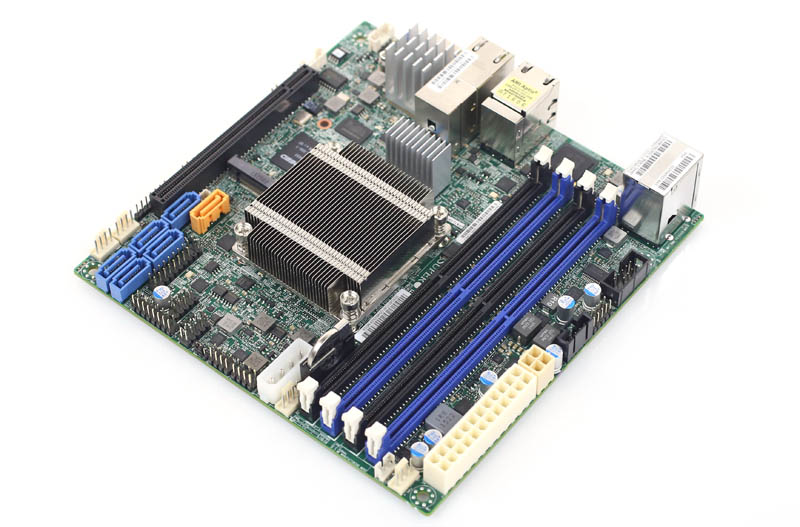
My homelab server uses a Supermicro X10SDV-6c-TLN4F motherboard that does not come with a CPU fan because it's meant to be screwed into a 1u chassis with its own fans. There's a low heatsink on the CPU to keep it cool using the chassis fans. The X10SDV-6c+-TLN4F does have a little CPU fan on the heatsink but was not available at the webshop where I bought the homelab server.


Silence
I did not buy myself a 1u chassis but a Supermicro Super-chassis CSE-721TQ-250B micro tower. This nice steel chassis offers a bit more storage options and thanks to the huge fan in the back, it's near silent. 

This fan is mostly there to keep the four 3,5" drivebays cool and it's placed too high on the back of the chassis to add a significant airflow over the tiny heatsink on the CPU. With all the extra space around and above the heatsink, it gets barely any cooling at all.

Heat
The low heatsink requires a lot of moving air to keep the CPU at a reasonable temperature. For example: Using no fan on the CPU heatsink means I must finish my calculations within three minutes or the CPU moves into thermal shutdown range. This makes using the little server no fun. A single Windows installation makes the CPU overheat and causes the whole server to power off. My  collegue already warned me about this before I bought the server so I knew I had to create more airflow over the heatsink.

Old stuff
Because I like pragmatic solutions, I decided to use a fan I had lying around since that's the cheapest and fastest solution. A bigger fan can move the same amount of air while making less RPM. So I grabbed the biggest PWM fan from the drawer filled with old computer stuff. It was actually a boxed cooler of some sort.


I don't remember ever owning an AMD desktop but I sure was happy to find this fan.
The attached heatsink is far to big to be mounted on the X10SDV motherboard so that had to go. Someday I may need it, so it's back in the drawer. Yes, I keep way to much junk. But look, sometimes it's very usefull to keep a heap of old stuff!

Let it fly
Having selected a big fan, there's no way to mount it on the tiny heatsink on the motherboard. I decided to add to the "front-to-back" airflow and keep some hot components near the CPU cool too. I suspended the fan in a diagonal manner, shown in the picture below.


That's right, the fan is hanging from the drivecage with two tie-wraps. Some times I fear one of the cables will end up in the blades but so far, none have. The fan pushes air around and into the heatsink and up the backside of the chassis, where it's extracted by the main case fan.

Cool and silent
So does it work? Yes it does! It keeps the CPU nice and cool and it adds some airflow over the rest of the components on the motherboard near the CPU. The NVMe SSD, BMC and the network controller get to experience a nice cool breeze.


FAN1 is the CPU fan and FAN2 is the case fan. Both are BIOS controlled and spin up when needed. I've never actually heard the fans spin up during use. Just once during testing (blowing hot air into the chassis with a hair dryer to make sure it worked).

17 August 2016

AHCI controller passthrough with a Supermicro Xeon-D motherboard

So someone asked me if it is possible to passthrough the onboard AHCI SATA controller from a Supermicro Xeon-D motherboard to a VM. Since I use ESXi, that's what I'll use to show you this. Hyper-V 2016 features discrete device assignment in the latest technical preview builds, you can try this with Hyper-V too. Maybe I'll do a blogpost on that some other time.

[10 feb 2021 - Update] This still works in ESXi 7.0.1 but the passtru.map has been placed in the subfolder /etc/vmware/.

I started by having a look in the list of devices that are available for passthough. The Lynx Point AHCI Controller was not on the list of devices since SATA controllers are unsupported for passthrough. Let's fix that!

Log in to your host using SSH or use the DCUI locally.
Find out the PCI ID using the following command:
esxcli storage core adapter list

Your onboard SATA controller is usually listed as vmhba0. The ID we're looking for is listed in the Description. So in this case, it's 0000:00:1f.2.

Enter the next command to find the PID. Substitute the PCI ID with your own ID if needed.
lspci -n | grep 0000:00:1f.2
In this case, the PID we're looking for is 8c02. Add this PID at the bottom of /etc/passthrou.map like so.
Edit: In ESXi 7.01, this file can be found here: /etc/vmware/passthru.map
Save your changes and reboot the ESXi host.

After the reboot, you'll be able to select the Lync Point AHCI controller.

Mark the device for passthrough and reboot the host.

When the host is up again, edit the VM settings to add the PCI device.


After adding the PCI device to the VM, boot it to see the result.


In my case, the VM I added the controller to is a Windows 7 virtual machine. To show you the controller and the connected disks, I added a screenshot of the device manager. I have two Samsung 850 Pro SSDs connected to the onboard SATA controller.
Reminder: Since the files for the VM itself have to be stored somewhere, you'll need another storage device. In my case, all the VM files are stored on an NVMe SSD. This method can be used to create a dedicated storage VM with a number of hard drives. It's a great way to give a FreeNAS VM direct access to a number of SATA drives.

Many thanks to Hilko for showing me the commands in the "Energy efficient ESXi server" thread on got.tweakers.net. Most of this blogpost is a shameless copy of his post.